Ever tried uploading an image only to see “unsupported format”? It’s frustrating. That’s where an Image Converter saves the day. It helps you switch your image into the right format in seconds.
Whether you’re working on a website, sending files, or editing photos, this tool makes things smooth. You don’t need technical skills. Just upload, convert, and download.
What is an Image Converter
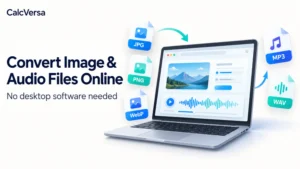
An Image Converter is a tool that changes image files from one format to another. For example, you can convert PNG to JPG or JPG to WebP.
Each format has its own purpose. Some are better for quality, others for size. A Free Image Converter lets you switch based on your needs without hassle.
How an Image Converter Works
The process is simple and quick. Even beginners can use it easily.
Step-by-Step Process
- Upload your image
- Choose the output format
- Click convert
- Download the new file
A good Free Image Converter also keeps your image quality intact while reducing file size when needed.
Common Formats You Can Convert
• JPG to PNG
• PNG to JPG
• WebP to JPG
• BMP to PNG
• GIF to JPG
Using an Image Converter gives you flexibility across devices and platforms.
Benefits of Using an Image Converter
An Image Converter is more than just a format changer. It solves everyday problems.
Here’s how it helps:
• Makes files compatible with websites
• Reduces file size for faster uploads
• Improves image quality when needed
• Saves storage space
• Works instantly without software installation
For example, if you’re uploading images to a blog, large files can slow down your site. A Free Image Converter can reduce size without losing quality.
Choosing the Right Image Converter
Not all tools work the same way. Some are slow, while others reduce quality too much.
Features to Look For
• Fast processing speed
• Multiple format options
• No quality loss
• Easy interface
• No watermark
The Free Image Converter on CalcVersa focuses on simplicity and efficiency. It’s designed for quick tasks without confusion.
Tips for Best Results
Using an Image Converter correctly can make a big difference.
Choose the Right Format
• JPG for smaller size
• PNG for better quality
• WebP for web performance
Keep a Backup
Always save your original file before converting.
Check Image Resolution
Lower resolution reduces size but may affect clarity.
Test Different Formats
Sometimes switching formats improves performance. A Free Image Converter makes testing easy.
Real-Life Example
Imagine you’re sending photos via email. The file size is too large. Instead of compressing manually, you use an Image Converter to convert PNG to JPG.
The result is a smaller file that sends instantly. That’s the power of using a Free Image Converter in daily tasks.
Common Mistakes to Avoid
Many users don’t get the best results because of simple mistakes.
Ignoring Format Purpose
Each format has a role. Using the wrong one can affect quality.
Over-Compressing Images
Too much compression can make images blurry.
Not Checking Output
Always preview your converted file before using it.
Using Low-Quality Tools
Some tools reduce quality heavily. Choose a reliable Image Converter.
Helpful Internal Resources
Want to improve your workflow? Check these:
[INTERNAL LINK: File compression guide]
[INTERNAL LINK: Image optimization tips]
These pair well with an Image Converter for better results.
Why Image Conversion Matters
Images are everywhere. Websites, social media, emails, and presentations all rely on them.
Using an Image Converter helps you stay flexible. You can adapt your files to any platform without stress.
A Free Image Converter makes this process even easier by removing technical barriers.
Final Thoughts
An Image Converter is a simple yet powerful tool. It saves time, reduces file size, and keeps your work smooth.
If you want a quick and reliable solution, try the Free Image Converter on CalcVersa. It’s designed to handle everyday image needs without complications.
Start converting your images today. Make your files lighter, faster, and ready for any platform.
FAQ SECTION:
Q1: What does an Image Converter do?
A1: It changes image files from one format to another, like PNG to JPG or WebP.
Q2: Is a Free Image Converter safe to use?
A2: Yes, as long as you use a trusted tool like CalcVersa.
Q3: Will an Image Converter reduce quality?
A3: It depends on settings. Good tools maintain quality while reducing size.
Q4: Can I convert multiple images at once?
A4: Some tools allow batch conversion, depending on features.
Q5: Is the Free Image Converter really free?
A5: Yes, most tools including CalcVersa offer free image conversion without hidden costs.