
Calculate your Cumulative Grade Point Average with precision
Calculation Method
Calculate your updated CGPA using previous academic record and current semester grades.
Previous Academic Record
Results
Current Semester GPA
—
Current Semester Credits
—
Total Completed Credits
—
Updated Cumulative GPA
—
Cumulative GPA Calculator is designed to allow the user to easily find out what his/her CGPA is based on his/her previous CGPA record and current grades. No calculations are needed – just enter the data and press the “Calculate” button.
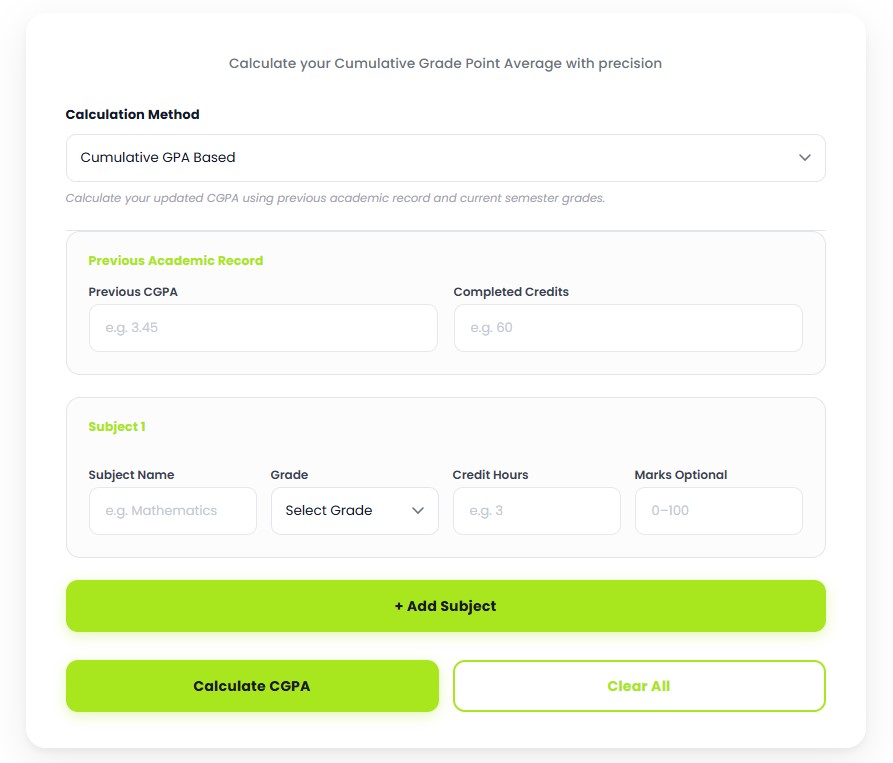
This calculation method incorporates your previous CGPA and credit hours, along with the current semester performance.
Please fill out the two boxes on the “Previous Academic Record” page below:
Please note that both of these fields are mandatory and cannot be skipped.
Each subject card contains four fields:
Enter the name of the subject, such as Mathematics or Physics. The subject name is optional and it doesn’t affect any result.
Select your grade from the list. Possible grades and corresponding grade points:
Input the credit hour of the subject (for example, 3). Decimal inputs like 1.5 are acceptable.
Now Input your total marks out of 100. It will not impact the calculation of your GPA.
If you add more subjects, press on the green + Add Subject button to add other subjects for the ongoing semester. Each additional card will be automatically numbered as Subject 2, Subject 3, and so on. To delete a subject, press the Remove button at the upper right of each card.
After you have entered all subjects, just click on the Calculate CGPA button. The calculator will check all the necessary information first before continuing with the calculation. An error message will appear should any field remain blank.
The Results section displays four values:
Notice how the stronger second semester pulled the average up only modestly — the first semester’s 15 credits still carry nearly half the weight. This is why early semesters matter so much.
Your semester GPA covers one term only; your cumulative GPA covers your entire academic career. Colleges, scholarships, and graduate schools look at the cumulative figure. A single weak semester hurts less as you accumulate more credits – each new term dilutes the older ones.
Sum of (Grade Point × Credit Hours) for every subject in the current semester.
Current Semester Quality Points ÷ Total Current Semester Credit Hours.
( Previous CGPA × Previous Completed Credits + Current Semester Quality Points ) ÷ ( Previous Completed Credits + Current Semester Credits )
They are the same thing - "cumulative GPA" and "overall GPA" both mean the grade point average across all completed semesters.
It depends on your completed credits. With 90 credits at 2.8, even a perfect 4.0 across 15 new credits only lifts you to about 2.97. The calculator above shows exactly what grades you would need.
It varies by school - many institutions accept transfer credits toward graduation but exclude their grades from your institutional GPA. Check your registrar's policy.
Typically 3.5+ for cum laude, 3.7+ for magna cum laude, and 3.9+ for summa cum laude, though thresholds differ by institution.
Many schools use grade replacement, where the new grade replaces the old one in GPA math - but the old attempt may still appear on your transcript. Confirm with your academic advisor.
Your cumulative GPA is one of the most important academic metrics out there, so it’s important you keep abreast of any changes. The last thing you want is one class dragging your hard-earned 4.0 down to a B+. It pays to be diligent; bookmark this page and keep your GPA updated regularly. Not as high as you’d like? Then check out our pro-tips on how to raise your GPA. See you next time!
High School GPA Calculator – calculate a single semester or year before combining it here.
© 2026 CalcVersa. All rights reserved.